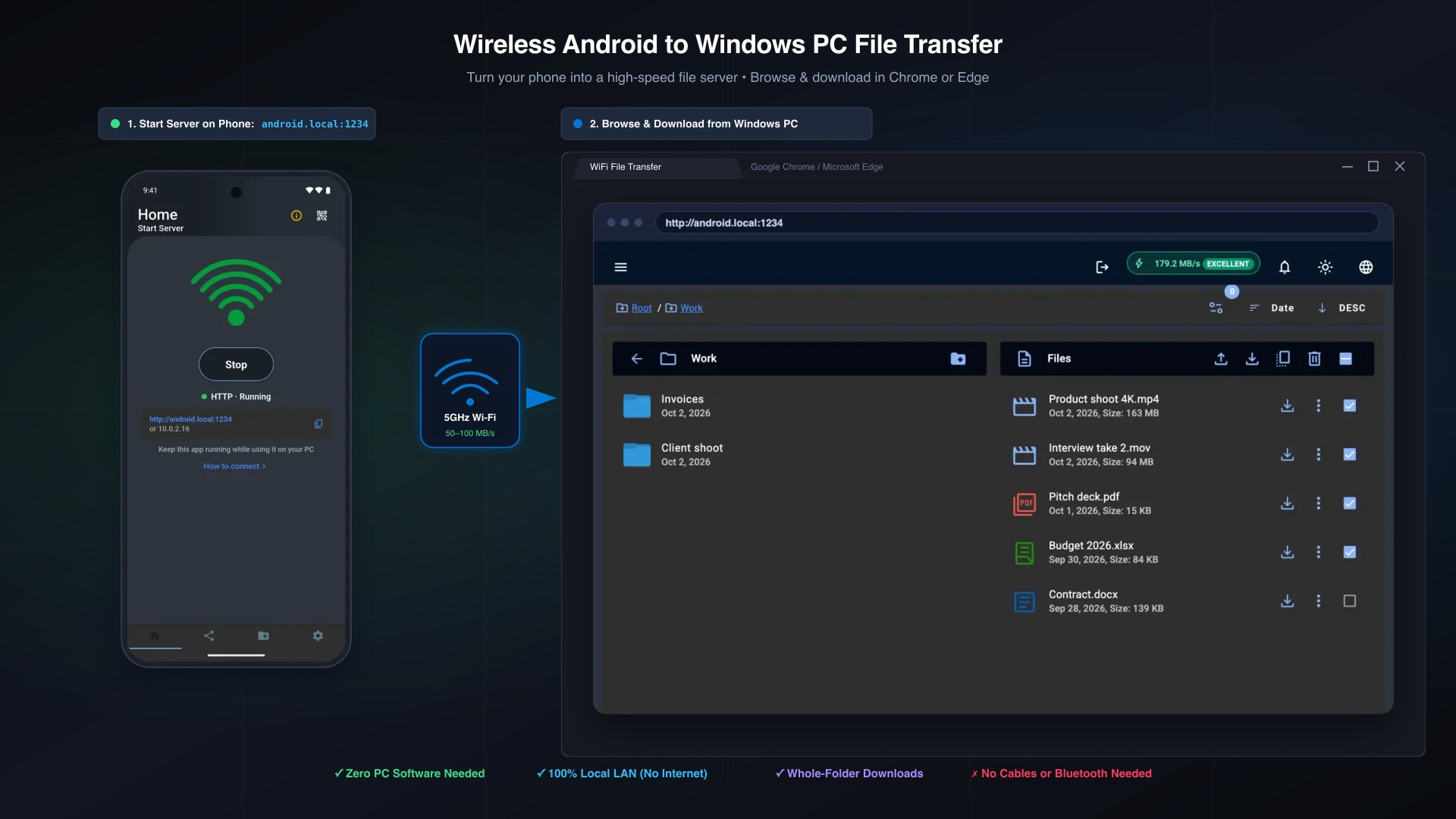
Hunting for a compatible USB-C cable just to copy a few photos, a video recording, or an APK from your phone to your computer is a relic of the past. Modern Android phones and Windows PCs share the same high-speed local network, yet transferring files wirelessly is often made unnecessarily complicated by proprietary cloud drives, fragile Bluetooth pairing, or slow upload speeds.
Whether you are offloading a 20GB 4K video shoot or simply pulling a downloaded PDF onto your workstation, you need a method that is fast, reliable, and secure. In this guide, we evaluate and rank the top 4 ways to transfer files from Android to PC without a USB cable, breaking down their real-world transfer speeds, setup friction, and ability to handle full directory structures.
The 4 Wireless File Transfer Methods Ranked
To determine the most practical solution, we tested four primary methods over a standard home Wi-Fi network (Wi-Fi 6, 5GHz). Here is how they rank based on overall efficiency, zero-install convenience, and handling of large file sets:
| Rank | Method | PC Software Required | 5GHz Speed | Folder Hierarchy | Best For |
|---|---|---|---|---|---|
| #1 | Local Web Server (WiFi File Transfer) | None (Browser) | 50–100 MB/s | Yes (Pro) | Bulk browsing & zero PC install |
| #2 | Google Quick Share for Windows | Windows App + Bluetooth | 40–80 MB/s | Zipped only | Quick one-off file drops |
| #3 | LocalSend (P2P LAN) | Windows Client App | 50–90 MB/s | Yes | Open-source cross-platform drops |
| #4 | Cloud Storage (Google Drive / OneDrive) | None (Browser / Sync) | 5–15 MB/s (WAN) | Yes | Long-term backup & remote access |
#1. Local Web Server (WiFi File Transfer) — The Best All-Around
Overall Score: 9.6/10 | Setup Time: Under 30 seconds
Instead of requiring you to install client software on your PC or sign in to third-party accounts, WiFi File Transfer turns your Android phone into an ultra-fast local HTTP/HTTPS file server.
Why It Takes #1:
- Zero PC Installation: You don’t need to install anything on your Windows computer. Simply open Google Chrome, Microsoft Edge, Firefox, or Brave, type the friendly address, and your phone storage opens up instantly.
- Friendly
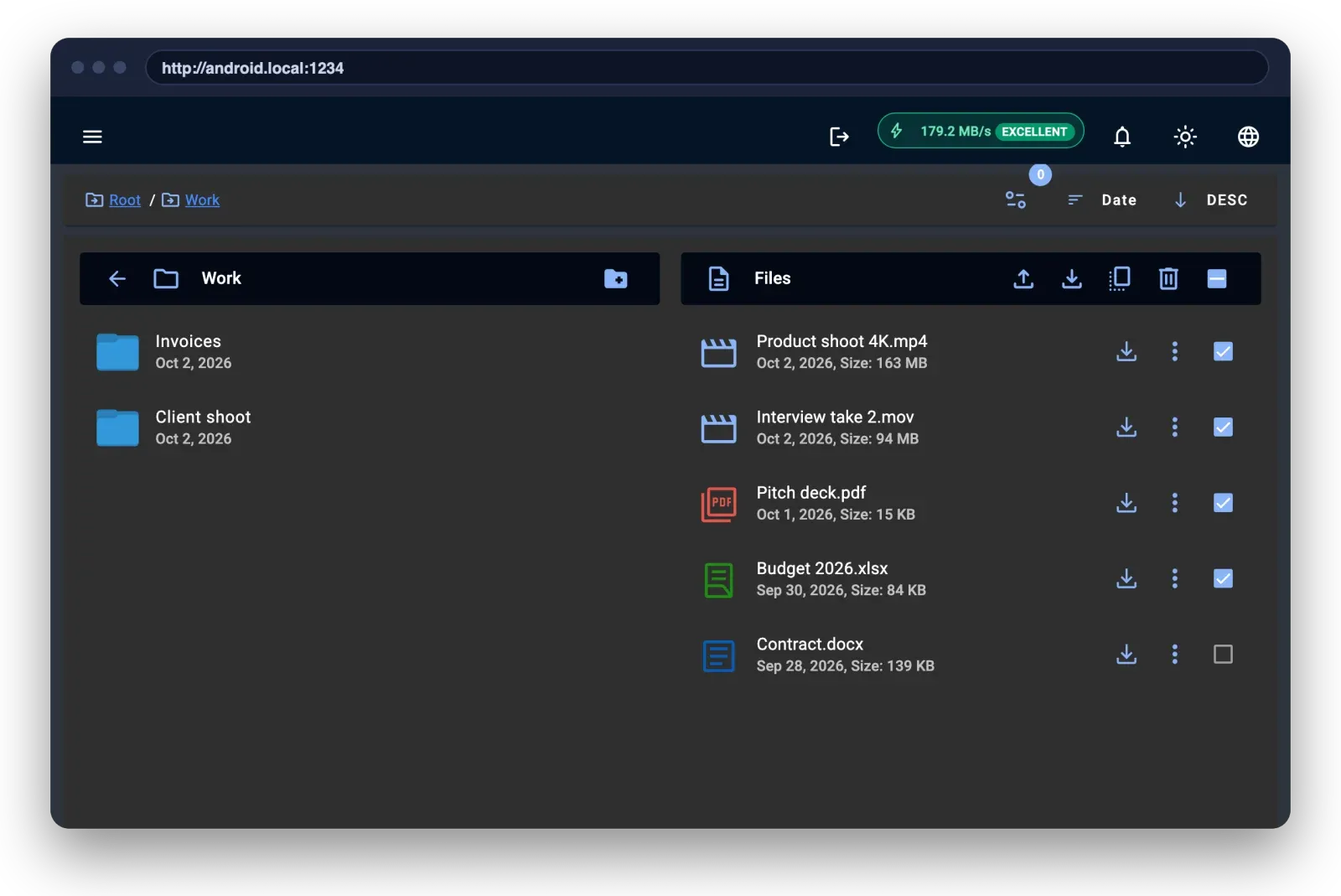
.localAddress (Less Typing): You don’t have to look up or memorize awkward IP numbers like192.168.x.x. Modern Windows 10 and 11 feature built-in mDNS support, allowing you to simply typehttp://android.local:1234(or bookmark it in your browser). - The “Pull” Workflow: Rather than tapping tiny thumbnails on your phone screen to “push” files, you sit at your PC with a large monitor, mouse, and keyboard to browse folders, search for files, preview media, and download what you need. (Learn more about browsing your phone storage in the browser).
- Local LAN Speed: Because data travels directly between your devices across your home router, transfers reach full local Wi-Fi speeds (often 50–100 MB/s) without consuming any internet bandwidth.
Step-by-Step Setup:
- Connect your phone and PC to the same Wi-Fi network (5GHz recommended).
- Open the WiFi File Transfer app on Android and click Start.
- Note the friendly address displayed on your phone:
http://android.local:1234(or the numeric IP fallbackhttp://192.168.1.15:1234).
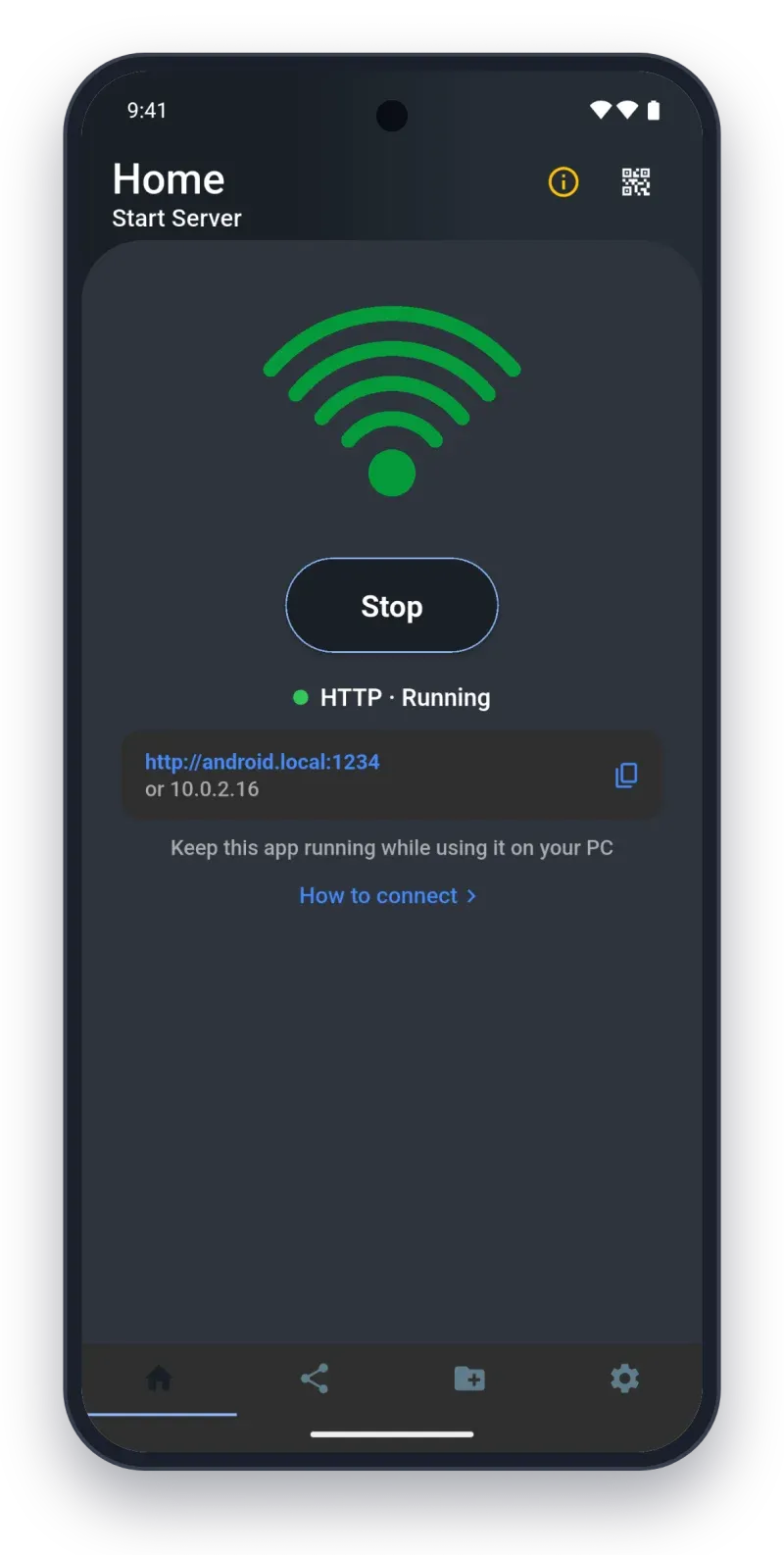
- For the easiest experience, type
http://android.local:1234into your PC browser (Chrome, Edge, or Firefox). - Browse your folders (
DCIM,Downloads,Documents, orSD Card) and click to download individual files or batch-select folders.
#2. Google Quick Share for Windows — Best for Single File Drops
Overall Score: 7.8/10 | Setup Time: 3–5 minutes
Formerly known as Nearby Share, Google’s Quick Share for Windows is Google’s official counterpart to Apple AirDrop. It allows direct peer-to-peer transfers over a combination of Bluetooth handshakes and Wi-Fi Direct.
Strengths:
- Native Android integration: Quick Share is built into the system share sheet on modern Android phones.
- Direct Windows integration once configured: Files can be dragged directly into the Quick Share desktop app.
Limitations:
- Hardware & Driver Barriers: Quick Share requires your Windows PC to have both Wi-Fi and Bluetooth enabled. If your desktop PC lacks a Bluetooth adapter or has weak antennas, pairing will consistently fail or get stuck on “Scanning nearby…”.
- Mandatory PC Software: You must download, install, and run Google’s background Windows service.
- Folder Handling: Quick Share is designed primarily for loose files. If you send a folder with nested directories, it frequently strips directory hierarchies unless compressed into a
.zipbeforehand.
#3. LocalSend — Best Open-Source Peer-to-Peer Client
Overall Score: 8.2/10 | Setup Time: 2–4 minutes
LocalSend is a popular open-source, cross-platform tool that operates over local network REST APIs with TLS encryption.
Strengths:
- Completely open-source and free without ads or third-party tracking.
- Preserves folder structures when sending directories.
- Cross-platform: Works across Android, Windows, Linux, macOS, and iOS. (If you work in a hybrid Apple-Android setup, check our guide on how to transfer files from Android to Mac wirelessly).
Limitations:
- Dual Installation Required: You must install and keep the LocalSend client running on both the Android phone and the Windows PC.
- Push-Only Model: You must initiate the transfer by picking files from your phone screen; you cannot sit at your PC and remotely browse your phone’s directories.
#4. Cloud Storage (Google Drive / OneDrive) — Best for Off-Site Sync
Overall Score: 6.5/10 | Setup Time: 1 minute (if account linked)
Uploading files to Google Drive, Dropbox, or OneDrive on your phone and re-downloading them on your PC is the default habit for many users, but it is deeply inefficient for local transfers.
Strengths:
- Works from anywhere, even when your PC and phone are on completely different networks or across the world.
- Automatic background photo backups.
Limitations:
- Double Bandwidth & Double Wait Time: Moving a 10GB folder requires uploading 10GB over your internet connection’s upload speed (often throttled by ISPs), followed by downloading 10GB onto your PC. What takes 90 seconds over 5GHz local Wi-Fi can take 30 minutes over the cloud.
- Storage Limits: Free tiers (15GB on Google, 5GB on OneDrive) quickly fill up, requiring paid subscriptions.
- Privacy & Compression: Video clips and photos may be scanned or re-compressed unless uploaded as raw binary files.
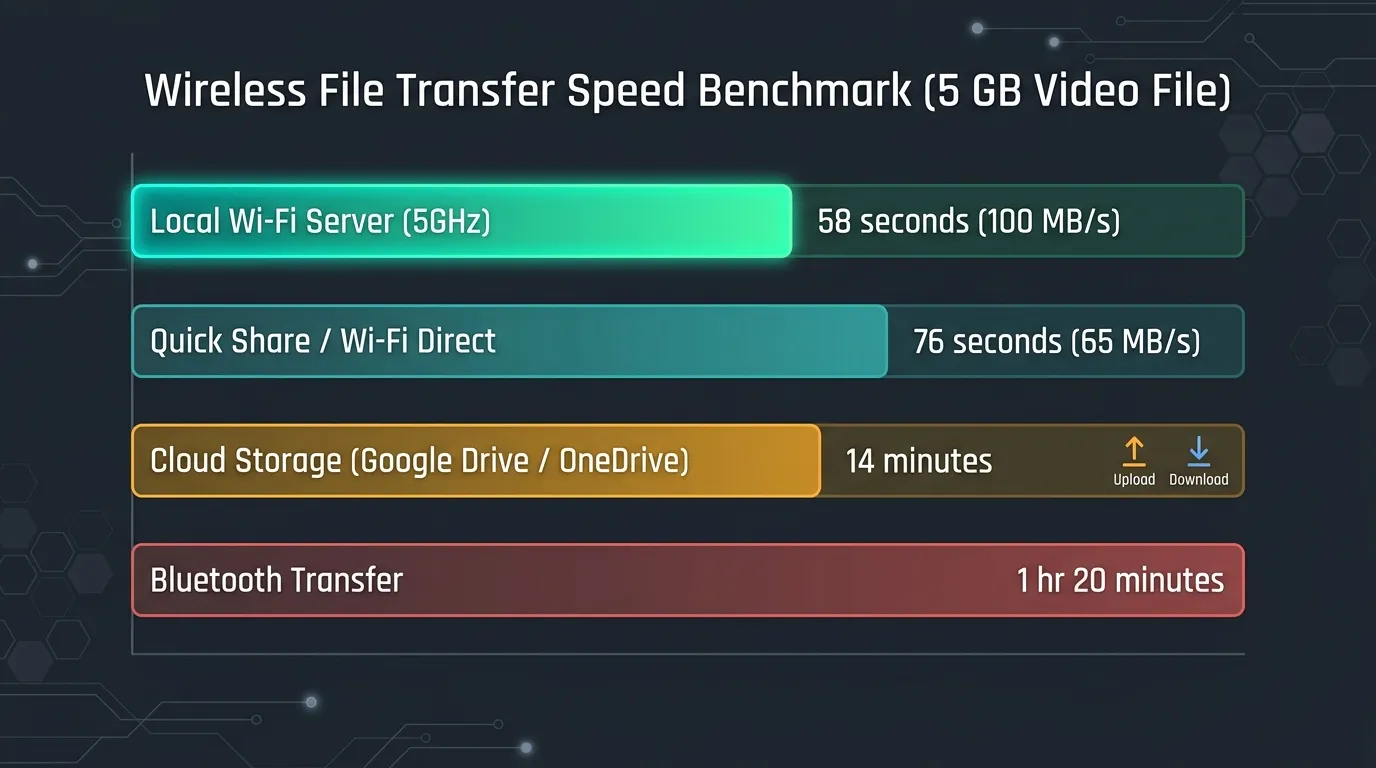
Speed Benchmark Breakdown
To highlight the real-world performance difference, we benchmarked transferring a 5 GB video file across all four wireless methods:
Power-User Capabilities: Overcoming Android Transfer Friction
When transferring massive files, standard tools often encounter two major system restrictions in modern Android versions (Android 13, 14, and 15):
1. Screen-Off Background Keep-Alive
When an Android phone’s screen turns off, the operating system aggressively enters Doze mode, killing network sockets to preserve battery. This is why long transfers on standard web utilities fail around the 2-minute mark.
WiFi File Transfer Pro solves this by running an explicit Android foreground service (WebServerService) with a persistent system notification. This keeps the Wi-Fi chip awake and transfers flowing at maximum throughput even while your phone is locked in your pocket or charging overnight.
2. Native Whole-Folder Downloads (No Archiving Required)
Traditional web servers can only download files individually or require the phone’s CPU to spend 5 minutes compressing folders into a .zip file before downloading.
By pairing modern Chromium browsers (Chrome, Edge) with the HTTPS engine in WiFi File Transfer Pro, the browser uses the File System Access API (showDirectoryPicker) to stream directory trees directly into a destination folder on your PC.
If you are running modern Windows 11, you can also explore how local network tools fit into your overall desktop environment in our Windows 11 guide.
Frequently Asked Questions (FAQ)
Why does Google Quick Share fail to discover my Windows PC?
Google Quick Share for Windows depends on Bluetooth Low Energy (BLE) to detect nearby hardware and negotiate the Wi-Fi connection. If your desktop PC lacks a dedicated Bluetooth card, has weak external antennas, or has Bluetooth disabled, discovery fails with errors like “Looking for nearby devices…”. Using WiFi File Transfer bypasses Bluetooth completely by connecting directly over your existing local Wi-Fi router via http://android.local:1234.
What is the fastest way to transfer large files from Android to PC wirelessly?
Direct 5GHz local network transfer is the fastest wireless method. Cloud platforms like Google Drive or OneDrive force files to upload over your internet connection’s upload speed, then re-download onto your PC. By running a local web server with WiFi File Transfer over 5GHz Wi-Fi (or a mobile hotspot), transfer speeds range between 50–100 MB/s, moving a 10GB 4K video file in 90 to 120 seconds.
Can I transfer entire folders from Android to PC without creating a ZIP file?
Yes. When using WiFi File Transfer Pro with modern Chromium browsers like Google Chrome or Microsoft Edge, the web app utilizes the modern File System Access API (showDirectoryPicker). You can pick a destination folder on your Windows PC and the app will stream the entire folder and its subdirectories directly into place without requiring phone CPU zipping.
Is it safe to transfer private photos and files over Wi-Fi?
Yes, when using a local-only LAN server like WiFi File Transfer. Transfers never route through external servers, cloud databases, or third-party relays. All data moves strictly inside your private home Wi-Fi network between your phone and your PC. Additionally, the Pro version supports local HTTPS TLS encryption for enhanced security on shared networks.
Summary & Recommendation
- For the fastest, zero-install experience: Use WiFi File Transfer. You open your PC browser, connect in seconds, and have full mouse-and-keyboard control over your phone’s storage.
- For quick one-off links or screenshots: Quick Share is handy if your PC already has an integrated Bluetooth adapter.
- For automated off-site backups: Use Google Drive or OneDrive overnight.
Download WiFi File Transfer today to turn your phone into a local high-speed file hub: