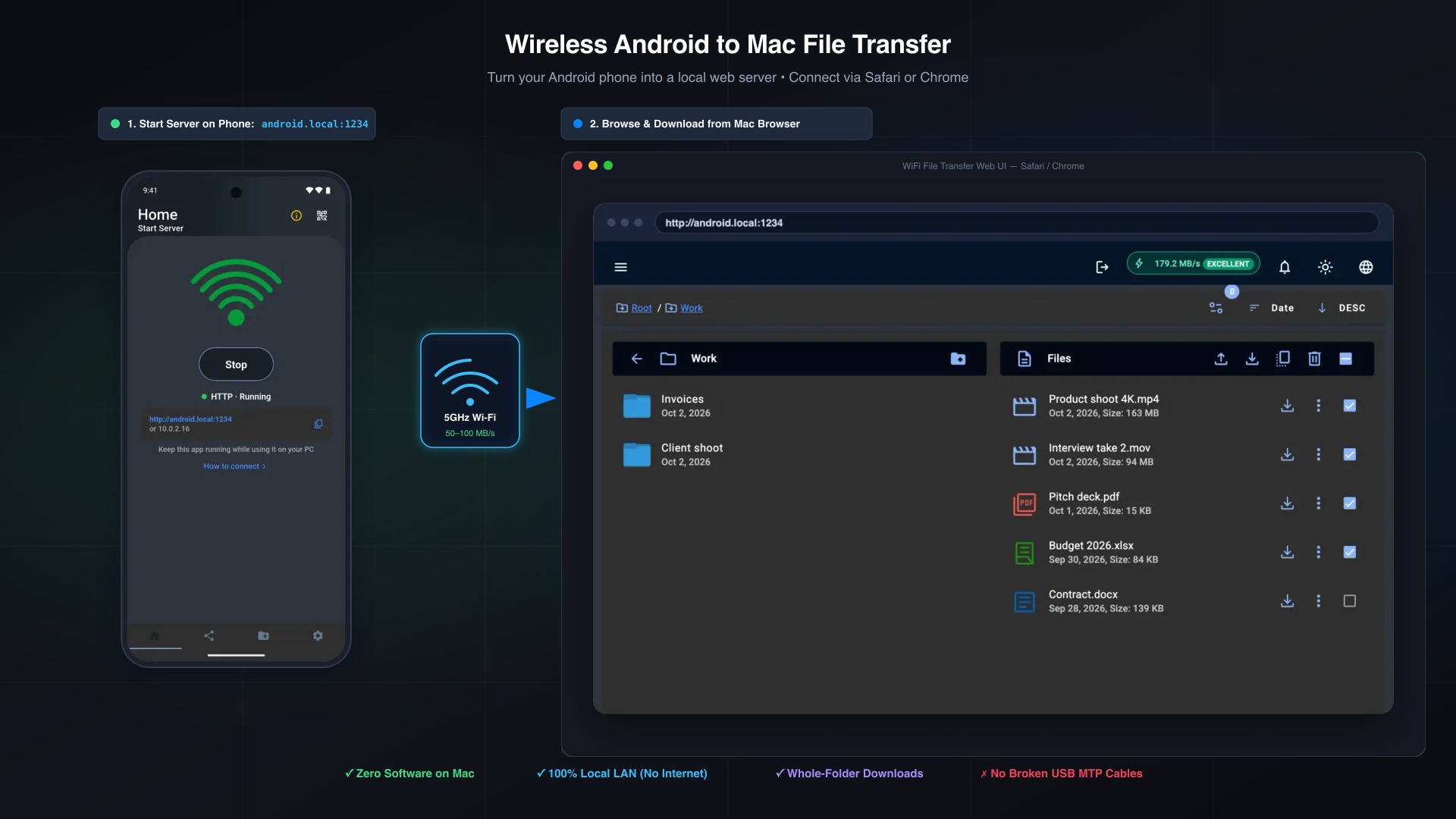
If you own an Android phone and an Apple Mac, transferring photos, videos, and large documents has always been an uphill battle. With Google officially discontinuing its legacy Android File Transfer (AFT) utility, macOS users are left without a native, plug-and-play solution. Plugging in a USB-C cable often leads to cryptic MTP errors, device disconnection loops, or Finder refusing to recognize the phone altogether.
Fortunately, you do not need unreliable cables, cloud subscriptions, or clunky third-party USB drivers to move your data. In this guide, you will learn how to transfer files from Android to Mac wirelessly by turning your Android device into a secure local file server. With this approach, you can open Safari or Chrome on your MacBook or Mac Studio, browse your entire phone storage like a local drive, and download files and full folders in seconds.
Why Android and macOS Struggle to Talk to Each Other
To understand why wireless transfer is the superior choice, it helps to understand what happens under the hood when you connect an Android phone to a Mac with a cable.
Unlike Windows or Linux, macOS does not natively support MTP (Media Transfer Protocol) inside Finder. Apple exclusively prioritizes its own ecosystem protocols (such as AirDrop and iCloud). For years, Google provided the basic Android File Transfer utility as a bridge, but it was built on aging 32-bit architecture and frequently crashed on modern macOS releases like Sonoma and Sequoia before finally being retired.
When you turn your phone into a local web server using WiFi File Transfer, your phone serves its storage directly over your local Wi-Fi network. Your Mac connects to it using standard HTTP or HTTPS through your web browser—bypassing MTP drivers, Apple sandbox restrictions, and USB handshake glitches.
Quick Comparison: Mac & Android File Transfer Methods
Here is how the top wireless and wired alternatives stack up for macOS users today:
| Method | Mac Software Required | Folder Downloads | Speed (5GHz LAN) | Privacy / Offline |
|---|---|---|---|---|
| WiFi File Transfer (Browser) | None (Any Browser) | Yes (Pro) | Fast (50–100 MB/s) | 100% Local LAN |
| Google Drive / Dropbox | None (Browser) | Yes (Zipped) | Slow (Internet bound) | Stored on Cloud |
| OpenMTP (USB Cable) | Yes (App required) | Yes | Variable (Cable quality) | 100% Local |
| Bluetooth Sharing | Built-in macOS | No (Individual files) | Extremely Slow (under 1 MB/s) | 100% Local |
| AirDrop | Not supported on Android | N/A | N/A | Apple devices only |
Step-by-Step Tutorial: Wireless File Transfer to Mac
Follow this simple tutorial to connect your Android device to your Mac and begin transferring files immediately.
Step 1: Connect Both Devices to the Same Wi-Fi Network
Ensure your Android phone and your Mac are connected to the same local Wi-Fi router. For optimal transfer speeds, connect both devices to your router’s 5GHz band.
Pro-Tip for Maximum Speed: If you are away from home or your office Wi-Fi isolates client devices, turn on your Android phone’s Portable Wi-Fi Hotspot (configured to 5GHz) and connect your Mac directly to your phone’s hotspot. This creates a high-bandwidth direct link that can exceed 100 MB/s without touching the internet.
Step 2: Launch WiFi File Transfer on Your Phone
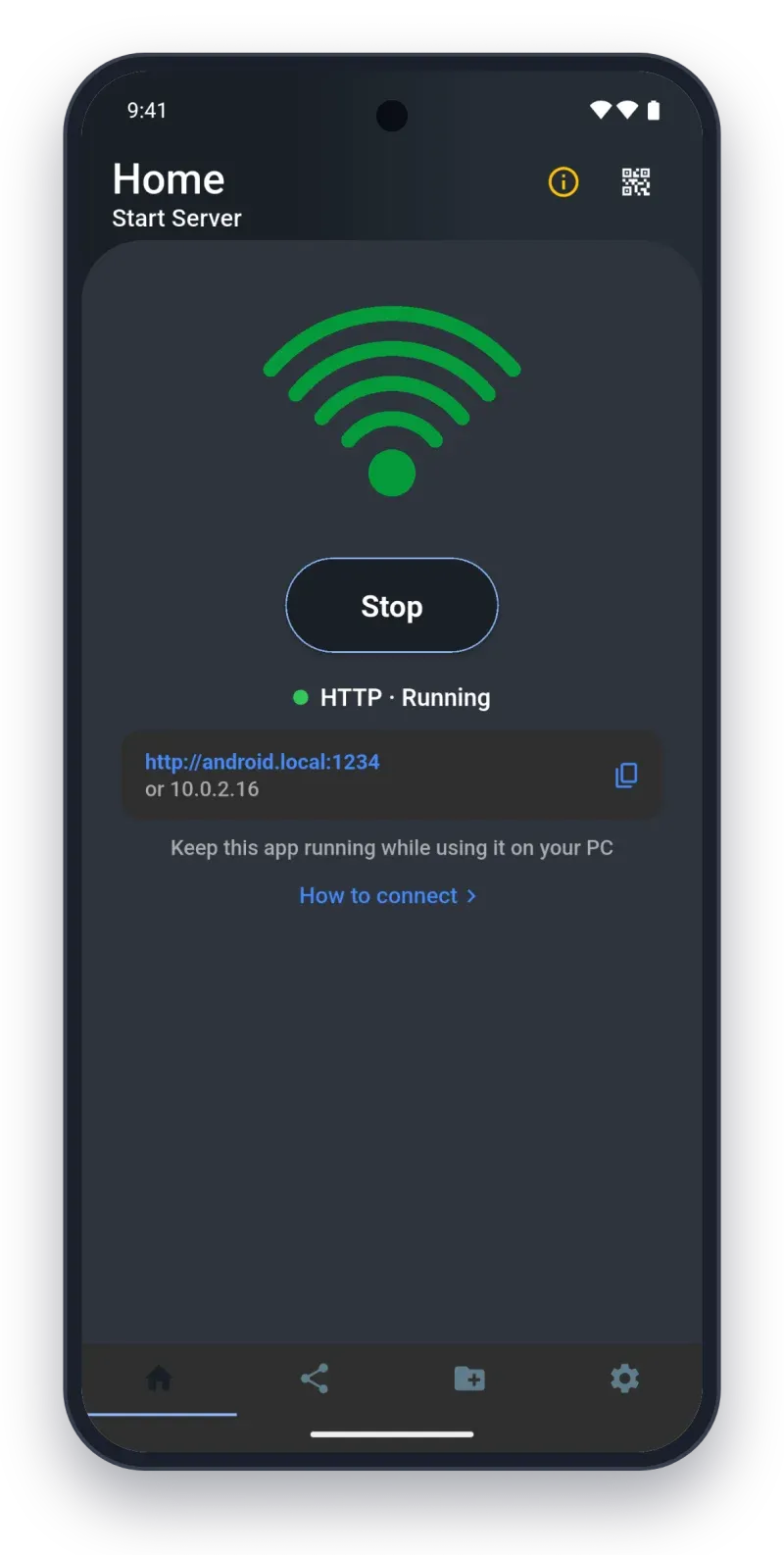
- Open the WiFi File Transfer app on your Android device.
- Tap the central Start button to launch the local web server.
- The app will immediately display your connection addresses:
- Recommended (
.localaddress):http://android.local:1234 - Numeric IP alternative:
http://192.168.1.45:1234
- Recommended (
Step 3: Open the Address in Safari or Chrome on Your Mac
- On your Mac, launch your preferred web browser (Safari, Google Chrome, or Brave).
- For the best and easiest experience, type
http://android.local:1234into your browser’s address bar and hit Enter.- Why
.localprovides the best experience: macOS includes built-in Apple Bonjour (mDNS) support. You never have to look up or type changing numeric IP addresses (192.168.x.x) every time your router assigns a new DHCP lease. You can simply bookmarkhttp://android.local:1234in your Safari favorites or Chrome bookmarks bar for effortless 1-click access anytime you start the app. - If your local router disables mDNS multicast, you can always use the numeric IP address shown in the app.
- Why
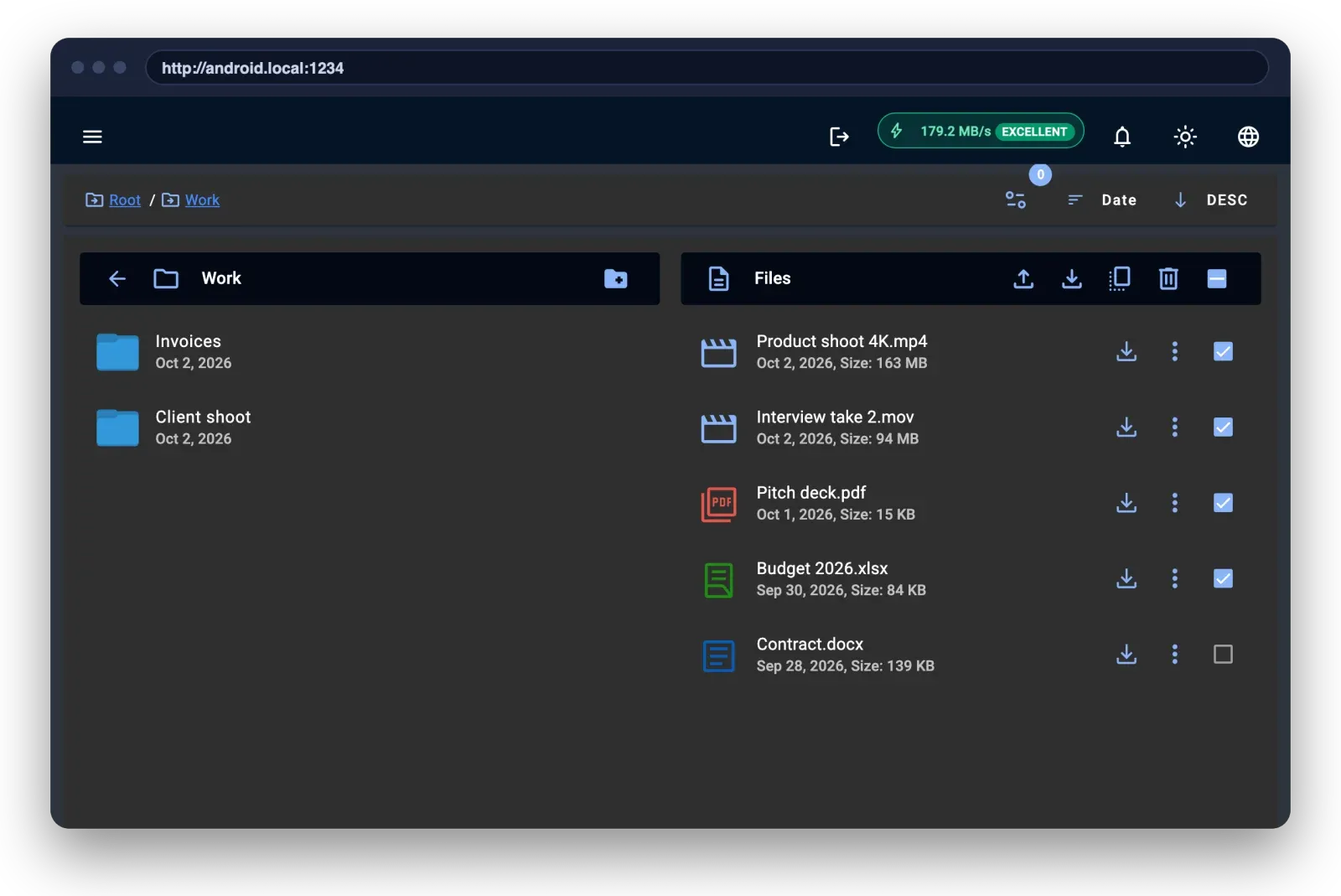
- Instantly, the techprd web interface loads, giving you complete access to your phone’s file system:
- DCIM / Camera: View high-resolution thumbnails of photos and 4K video clips.
- Download: Access downloaded PDFs, APKs, and documents.
- Music & Podcasts: Stream or pull audio tracks.
- Internal Storage / SD Card: Browse custom folder directories.
Step 4: Select and Download Your Files
- Individual Files: Click any file to download it straight to your Mac’s
~/Downloadsfolder. You can also preview photos and stream media directly inside the browser before downloading. - Bulk Downloads: Select multiple items using the checkboxes and click Download Selected.
Safari vs. Chrome on macOS: Which Should You Use?
Both Safari and Google Chrome work smoothly with WiFi File Transfer, but they handle directory structures differently due to macOS browser security models:
1. Apple Safari
- Best for: Rapid single-file and multi-file downloads with native macOS keychain and system integration.
- Behavior: Safari prompts you once to allow downloads from the local IP. When downloading multiple files, Safari groups them efficiently without requiring additional permissions.
2. Google Chrome & Chromium Browsers
- Best for: Whole-folder management and batch directory uploads.
- The File System Access API: Chrome supports the modern
showDirectoryPickerAPI. When paired with WiFi File Transfer Pro (which provides a local HTTPS endpoint), Chrome allows you to select an entire folder on your phone and mirror it directly into a destination folder on your Mac without compressing it into an intermediate archive.
Overcoming Common File Transfer Limitations
If you have tried other transfer tools before, you likely ran into two frustrating bottlenecks: broken transfers when your phone goes to sleep, and the inability to download structured directories. Here is how to handle both:
1. Keeping Transfers Active With the Screen Locked
By default, Android battery optimization aggressively throttles background processes when your phone screen turns off. With basic transfer utilities, a 15GB video backup will fail halfway through as soon as the display sleeps.
To prevent this, WiFi File Transfer Pro incorporates an Android foreground service (WebServerService). This maintains an active wake lock on the network transfer socket, allowing you to lock your phone, put it on a wireless charger, and let multi-gigabyte transfers complete smoothly in the background on your Mac.
2. Downloading Entire Folders Without Manual Zipping
Tapping through 50 subfolders to download vacation photos or development assets is tedious. Instead of tapping one file at a time, you can adopt the smarter habit of browsing phone storage directly from your browser.
With the Pro version, you can click on an entire directory (like your DCIM/Camera or Documents/Projects folder) and initiate a direct folder pull. The web client packages and streams the directory structure directly to your Mac storage.
Troubleshooting Mac Connection Issues
If your Mac browser displays an error like “Safari Can’t Open the Page” or “This site can’t be reached”, check these three common network configurations:
- AP Isolation (Guest Networks): Many public, coffee shop, or guest Wi-Fi networks enable Access Point (AP) Isolation, which prevents Wi-Fi devices from communicating with one another. If you are on a guest network, switch to a private network or use the phone’s mobile hotspot.
- Active VPNs: If your Mac or Android device has an active VPN client (such as Tailscale, WireGuard, or a corporate VPN), local subnet traffic may be routed into the VPN tunnel. Temporarily disable the VPN on both devices while transferring local files.
- Address & Port Number (
:1234): For the smoothest experience, usehttp://android.local:1234. If your router restricts mDNS multicast resolution, enter the exact numeric IP address and port shown in the app (e.g.,http://192.168.1.45:1234). Always ensure you include the colon and port number.
If you also work in a mixed environment with Windows machines, you can apply similar wireless techniques to transfer files from Android to PC without a USB cable.
Frequently Asked Questions (FAQ)
Can I AirDrop files from Android to Mac?
No, Apple AirDrop is a proprietary protocol restricted strictly to iOS, iPadOS, and macOS hardware. Android devices cannot discover or communicate with AirDrop targets. However, using WiFi File Transfer achieves the same cable-free workflow by advertising http://android.local:1234 directly over your local Wi-Fi, allowing Mac users to browse and transfer files in Safari with zero software installed on macOS.
Why was Android File Transfer (AFT) discontinued on Mac?
Google officially phased out the legacy Android File Transfer desktop utility because macOS lacks native MTP (Media Transfer Protocol) file system integration, and newer macOS updates (Sonoma, Sequoia) frequently broke the aging driver architecture. Browser-based local web servers avoid MTP entirely by streaming files over standard HTTP/HTTPS over your local LAN.
How do I transfer large 4K videos from Android to Mac wirelessly without losing quality?
Cloud storage providers (Google Drive, Dropbox) often compress video previews or take a long time to upload over home internet connections. To preserve full bit-rate 4K and 8K videos, use WiFi File Transfer connected to a 5GHz Wi-Fi band or your phone’s mobile hotspot. Local transfers reach speeds between 50–100 MB/s, transferring a 10GB video file in roughly 2 minutes directly into your Mac’s ~/Downloads folder.
Do I need to install any software or drivers on my Mac?
No. Unlike third-party MTP replacement utilities, you do not need to install any software, drivers, or kernel extensions on macOS. You only run WiFi File Transfer on your Android phone, then open http://android.local:1234 in Safari, Chrome, or any standard web browser on your Mac.
Conclusion: The Smarter Way to Move Files to Mac
You don’t need to struggle with discontinued Google software, finicky cables, or slow Bluetooth connections. Turning your phone into a temporary local server gives you the speed of local 5GHz Wi-Fi with the convenience of working inside your favorite Mac browser.
Get started with the free edition today or unlock unlimited folder transfers with Pro: